
Selling an iPhone is a smart way to recover some value when upgrading to a newer device. Many Australians choose to sell phones online because it’s convenient, quick, and often more rewarding than leaving an old device unused in a drawer.
Before you sell your phone, however, there are a few important steps to take to protect your personal information and ensure the new owner can use the device without issues. One of the most important tasks is turning off Find My iPhone.
This guide explains why the feature matters, how to disable it correctly, and what you should do afterwards to complete the sale safely.
Why You Must Turn Off Find My iPhone Before You Sell Your Phone
Find My iPhone is a built-in Apple security feature designed to help locate a lost or stolen device. It allows users to track their phone on a map, lock it remotely, or erase its contents if necessary.
While this feature is extremely useful when the phone belongs to you, it can create problems when you plan to sell the device.
Find My iPhone automatically activates Activation Lock, which links the phone to your Apple ID. If the feature remains enabled, the new owner will not be able to set up or use the phone without your login credentials.
This is why disabling the feature is essential before you sell phones or transfer ownership.
Trusted resale services such as Mobile Guru require Activation Lock to be removed before accepting a device. This ensures the buyer receives a phone that can be activated without restrictions.
What Happens If You Don’t Turn Off Find My iPhone
Leaving Find My iPhone enabled can cause several issues during the selling process.
The most common problem is that the buyer cannot activate the device after resetting it. When the phone is turned on, it will request the original Apple ID and password.
Without this information, the phone becomes unusable.
Because of this security restriction, many buyers refuse devices that still have Activation Lock enabled.
In some cases, payments may also be delayed while the seller is asked to disable the feature remotely.
For companies that buy used devices, including Mobile Guru, Activation Lock checks are part of the inspection process. Phones with the feature still enabled cannot move forward in the resale process until it is removed.
Disabling Find My iPhone beforehand helps ensure the sale proceeds smoothly.
Things to Do Before Turning Off Find My iPhone
Before switching off the feature, it’s worth preparing your device properly. A few simple checks can make the process easier.
Start by backing up your data. You can use iCloud or connect the phone to a computer to save photos, contacts, and other important files.
Next, make sure you remember your Apple ID password. You will need it to turn off Find My iPhone.
It’s also a good idea to ensure the phone has enough battery power. A charged device prevents interruptions while adjusting settings.
Connecting to Wi-Fi helps the system update properly.
Finally, remove your SIM card if you plan to use it in another device.
Taking these steps helps prepare your device before you sell your phone.
How to Turn Off Find My iPhone Before Selling
Quick Answer – Turn Off Find My iPhone
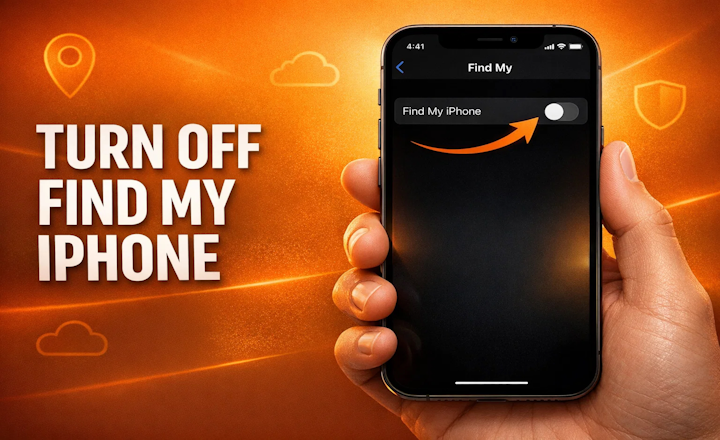
You can disable Find My iPhone in just a few steps:
1. Open Settings
2. Tap your Apple ID name
3. Select Find My
4. Tap Find My iPhone
5. Turn the switch OFF
6.Enter your Apple ID password
Once this is done, the phone will no longer be connected to your Apple ID through Find My.
Step-by-Step Instructions
For a clearer walkthrough, follow these detailed steps:
1. Open the Settings app on your iPhone.
2. Tap your Apple ID profile at the top of the screen.
3. Scroll and select Find My.
4. Tap Find My iPhone.
5. Toggle the Find My iPhone switch to OFF.
6. Enter your Apple ID password when prompted.
7. Confirm the change.
Once the feature is disabled, the device is ready for the next preparation steps before you sell phones.
How to Check If Find My iPhone Is Successfully Disabled
After turning off the feature, it’s wise to double-check that everything worked properly.
Return to Settings → Apple ID → Find My and confirm that the toggle remains switched off.
Restarting the phone can also help ensure the change has been applied correctly.
If you reset the device afterwards, you should see the standard setup screen when the phone powers back on. This indicates the phone is no longer linked to your Apple ID.
Many resale companies, including Mobile Guru, recommend confirming this step before sending the phone for inspection to avoid delays.
What to Do After Turning Off Find My iPhone
Once Find My iPhone is disabled, you can complete the final preparation steps before selling your device.
Start by signing out of iCloud through the settings menu. This removes your Apple account from the phone entirely.
Next, perform a factory reset by going to:
Settings → General → Transfer or Reset iPhone → Erase All Content and Settings
This removes all personal data and restores the device to its original state.
Cleaning the phone and including accessories such as the charging cable or original box can also improve the selling experience.
Many Australians preparing to sell their devices follow these steps before sending their phone to Mobile Guru, helping ensure a smoother inspection and payment process.
Common Mistakes People Make Before Selling an iPhone
Even experienced smartphone users sometimes overlook key preparation steps.
One of the most common mistakes is forgetting to disable Find My iPhone, which prevents the buyer from activating the device.
Another issue occurs when people reset the phone before signing out of their Apple ID, triggering Activation Lock.
Some users also forget to back up their data, which can lead to the loss of photos or contacts.
Others rush through the process and forget to remove the SIM card or check that the device has been properly reset.
Taking a few extra minutes to review everything can prevent delays when you sell your iPhone.
Final Thoughts
Turning off Find My iPhone is a crucial step when preparing to sell a device.
The feature protects your phone while you own it, but leaving it enabled can stop the next owner from activating the device. Disabling it ensures the phone can be used normally once the sale is complete.
By backing up your data, removing your Apple ID, and resetting the phone correctly, you can prepare the device with confidence.
Following these steps helps you sell phones faster, avoid delays, and ensure the buyer receives a fully functional device. Many Australians rely on trusted resale services such as Mobile Guru, where proper preparation helps make the selling process smooth and secure.
| < Prev | Next > |
|---|